An audit opportunity is a starting point, not a writing assignment. Before you ask AI for an article, decide what the buyer needs to understand and which evidence supports the answer.
Trace keeps that context connected: start with a question from the audit, carry its answers and sources into a brief, then review a separate AI draft before changing your working copy.
Screenshots show Trace’s actual interface, captured October 21, 2026 from a test copy of Trace. Alder, Summit, and Roam are fictional brands, and the answers behind them are test data. The AI version shown in Review is placeholder text written for this guide, not real AI output.
1. Choose an opportunity worth answering
In your free report, open Opportunities and read the evidence behind a competitor-only gap. A useful candidate is a relevant buyer question where your brand is absent and your product genuinely belongs in the conversation.
Trace’s strongest observed gap ranks questions by competitor-only answer count, then engine coverage in the selected view. That ranking does not prove a page is missing or estimate how much revenue a new article will earn.
Read the supporting answers and open the cited pages first. Then check your own website. If a relevant page exists, consider improving it rather than publishing another page that says the same thing.
2. Carry the question into a brief
Select Create my brief from the report’s leading opportunity. Trace opens a free workspace and a content document with the question, supporting answers, and cited sources attached. This step does not start an AI generation or a subscription.
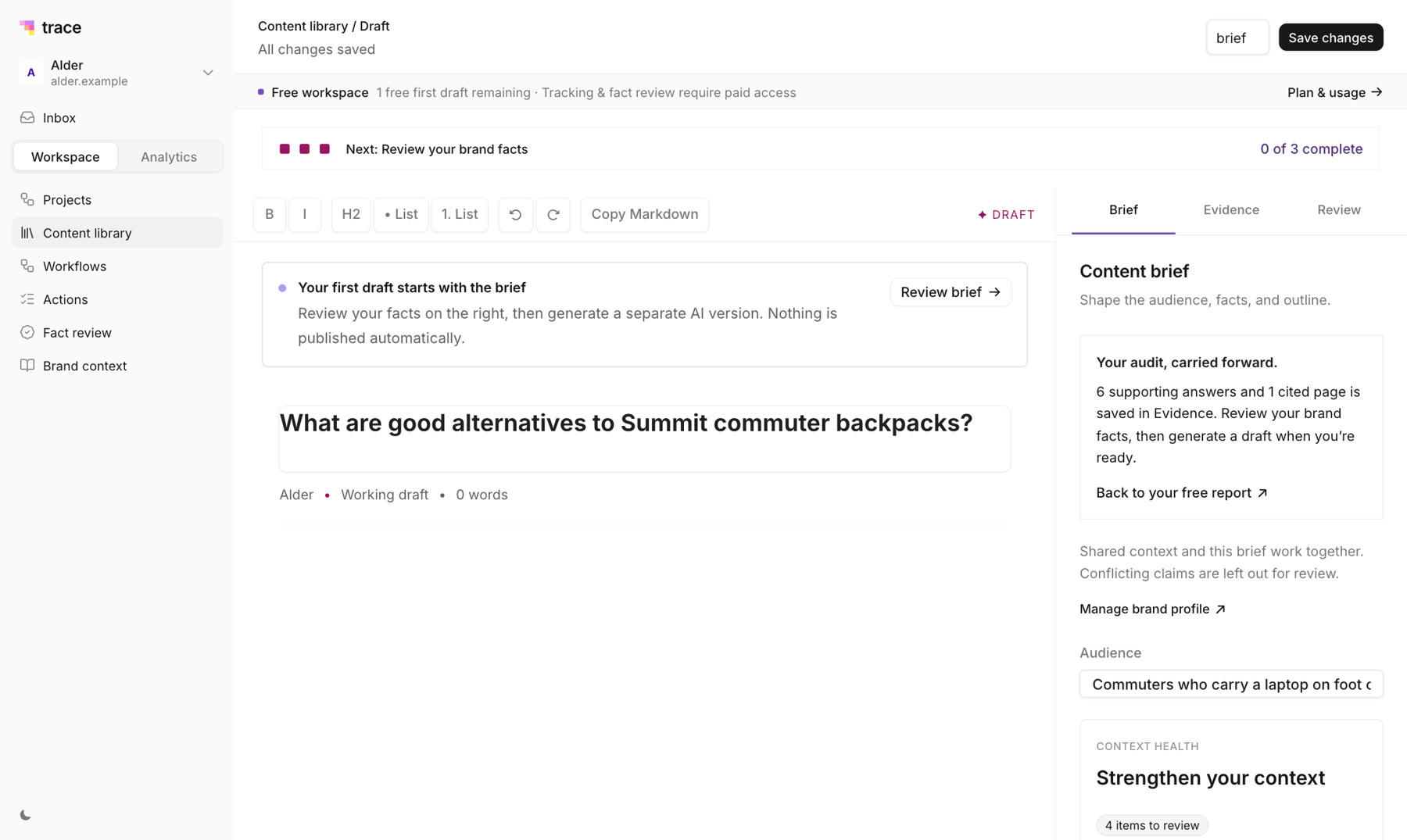
The blank working copy is intentional. Creating a brief gives you a place to plan; it does not fill the editor with unreviewed prose.
3. Give the brief a specific job
In the Brief tab, review the audience, approved facts and voice, and outline. Use Manage brand profile to review the shared context. Trace includes the latest shared voice and facts when generating; the document’s brief fields remain specific to that piece.
Audience: commuters carrying a laptop on foot or public transport.
Job: explain how to choose weather protection without confusing water-resistant with waterproof.
Evidence needed: current product specifications and care guidance.
Outline: daily load → fit → weather protection → when to use a rain cover.
Avoid: unsupported waterproof claims, invented test results, and unverified comparisons.
This fictional example is a planning template, not an approved fact about a real product. Replace every product assertion with facts you can support.
Trace won’t generate until the brief has at least one approved fact. A website address alone isn’t enough context. Add facts in the brief’s Facts saved with this brief field, or once in your shared brand profile so every brief can use them.
4. Inspect Evidence before generating
The Evidence tab explains why the opportunity was created and groups its supporting answers and research sources. Use it to check whether the brief actually addresses the original question.
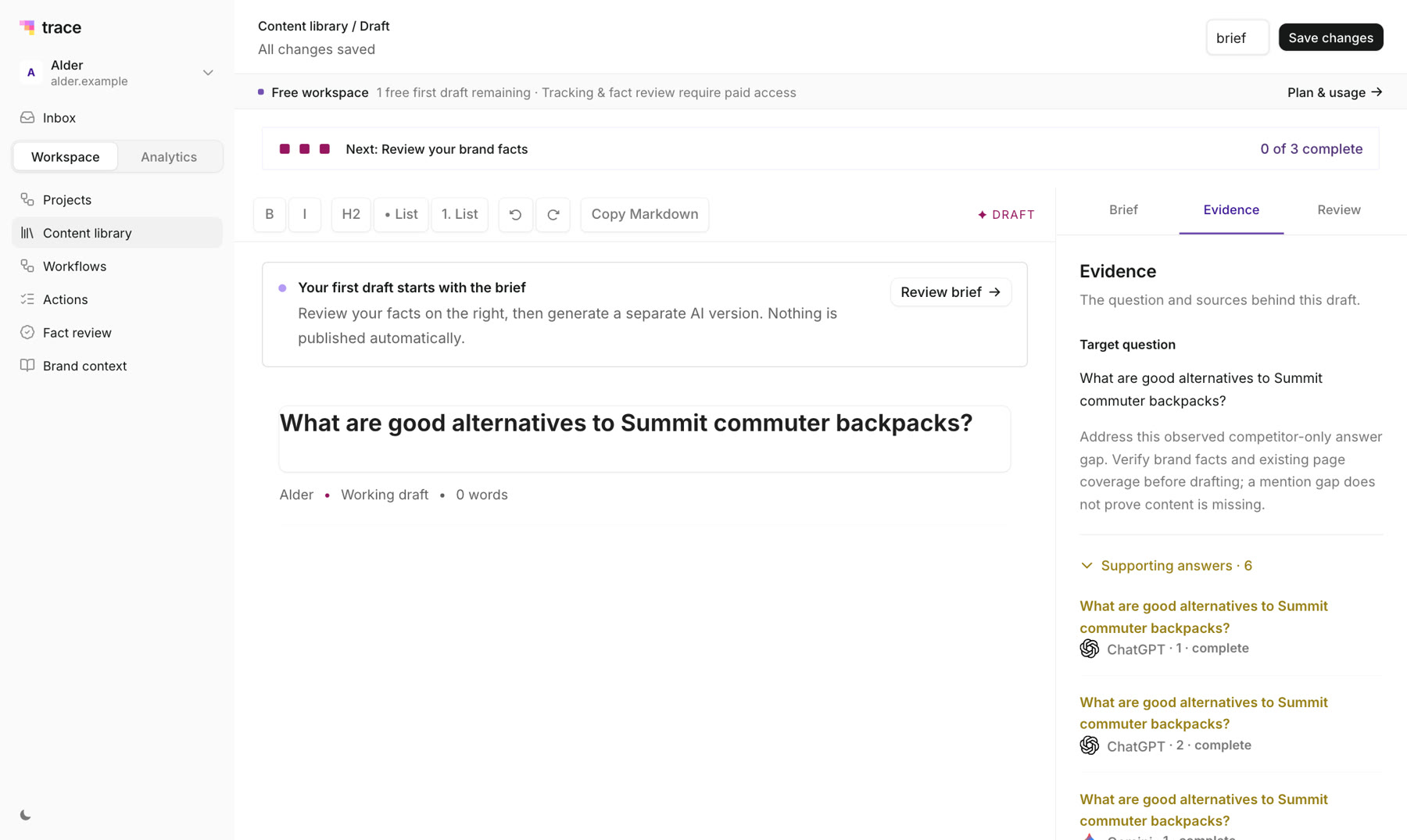
For pricing, plan limits, product capabilities, and competitor comparisons, verify the original source. If a source describes an older offer, preserve its date and explain the historical context. Do not turn “this existed then” into “this is available now.”
5. Generate a separate AI version
When the brief is ready and you have generation allowance, select Generate AI draft. Trace saves the brief and creates a separate version for review. Your existing working copy is not silently replaced.
The free workspace includes one successful first generation. Failed or interrupted generations do not consume that allowance. Further successful generations use the paid allowance in the $99/month workspace, which includes 20 AI drafts per calendar month.
If the button is disabled, check Plan & usage. You can still review the evidence, edit manually, and export saved work. Do not keep regenerating simply to avoid making an editorial decision.
Connect Trace to Claude, ChatGPT, or Cursor and ask it to run the close a gap playbook. It reads the same question, evidence, and approved facts, and saves its draft to your Content library for the same review. Nothing is published.
How the AI assistant connector works →6. Compare changes and keep editorial control
Open Review, select a saved AI version, and choose Compare changes. For each proposed change, Accept AI change uses the AI text; Reject · keep mine retains your working copy. Decisions and edits save automatically.
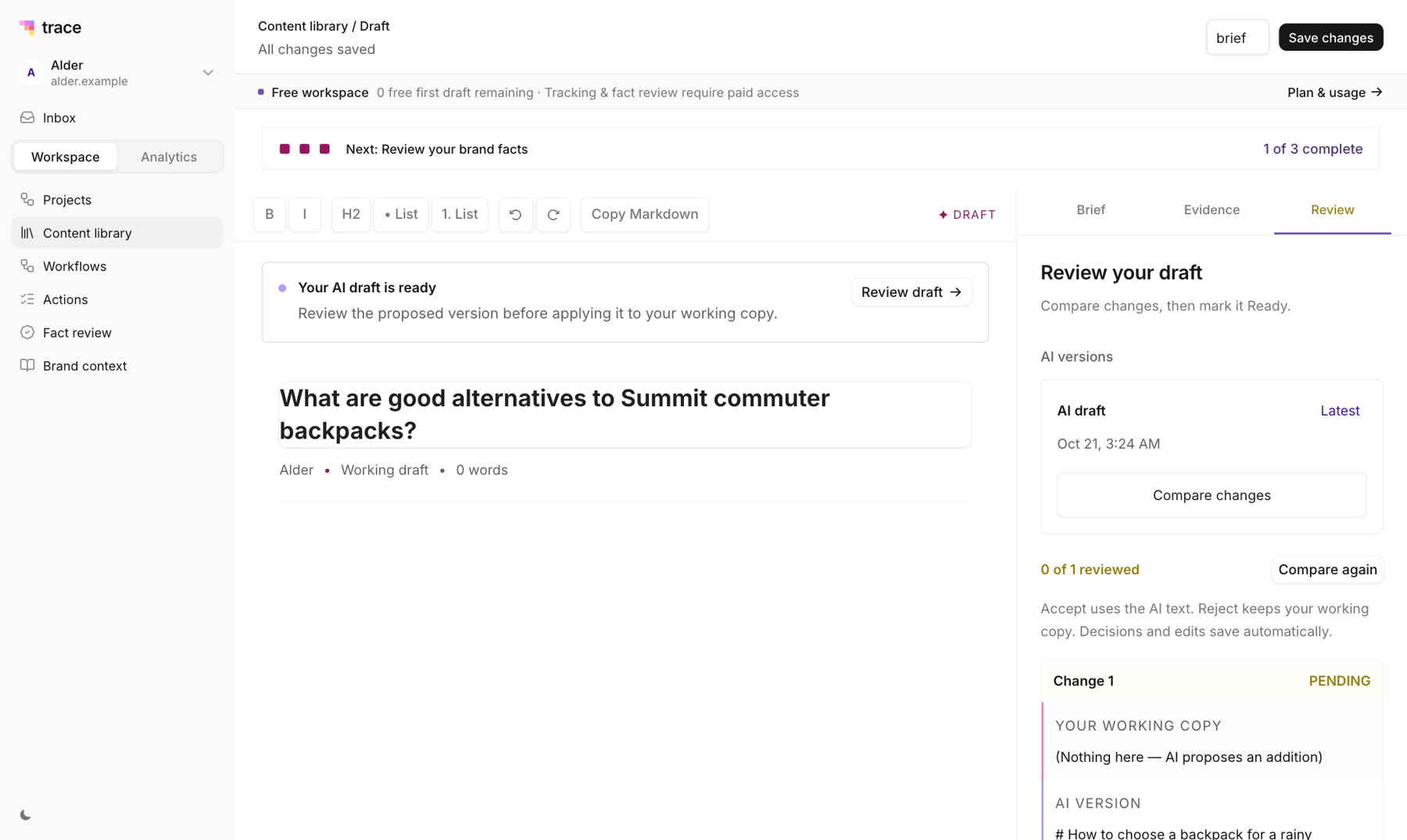
Review more than grammar. Does the draft answer the buyer’s question? Can you support every important claim? Are dates and qualifications preserved? Does the recommended next step fit the audience?
Trace’s grounding checks help flag unsupported claims, but they do not replace your source review. If a generation fails its review, the failure is shown and your working copy remains unchanged.
7. Export, publish yourself, and record the URL
When the piece is ready, change its content status to ready. In Export & publication, download Markdown or HTML and publish through your own website or CMS. Trace does not publish automatically.
Record the published URL and actual publication time. Content status and publication are separate: marking a draft ready does not put a page online. Saved version history lets you revisit earlier work.
Later, compare citations for the same tracked questions before and after the update. A change is an observation, not proof that the content caused it. Keep the question set, engine scope, and answer coverage in mind.
A relevant question, an evidence-backed brief, and a reviewed draft are more valuable than another unverified article in the queue.
Find your first opportunity with a free audit →